How to Recover Deleted Photos from SD Cards?
Wondering if you can recover your lost photos from an SD card? Yes, you can easily get your photos back if it has not been overwritten. Losing photos from your SD card may feel frustrating, especially if they contain precious memories, travel moments, or important office work. The good news is that deleted photos from an SD card are often recoverable if you act quickly and follow the correct recovery methods.
When a photo is deleted from your SD card, it is not immediately erased. Instead, the storage space becomes marked as available for new data. Until new files overwrite that space, recovery software and backup methods can help restore your deleted pictures successfully. This guide explores different reasons for photo loss, quick methods to recover deleted photos from SD cards, and preventive measures to avoid such instances in the future.
Why Photos Get Deleted from SD Cards?
Understanding the exact reason for your photo loss from an SD card can help you determine adequate recovery workarounds. Some prominent reasons include:
- Accidental Deletion: You might have accidentally deleted important photos while freeing storage space or organising files.
- SD Card Formatting: Formatting the SD card, especially without any backup, removes file references and may make photos inaccessible.
- Corrupted SD Card: Issues like improper removal, virus infections, or interrupted file transfers may corrupt the SD card and infect or delete files stored on your SD card.
- Device Errors: Camera crashes, smartphone failures, or sudden device shutdown are also one of the main reasons for photo loss from your SD card.
How do I Recover Photos Deleted from Your SD Card?
You can use previously created backups – cloud backups or any SD card backup to restore your deleted photos. However, if no backup exists, use third-party SD card recovery software. Let’s explore these methods in detail:
Method 01: Recover Photos Using Cloud Backups
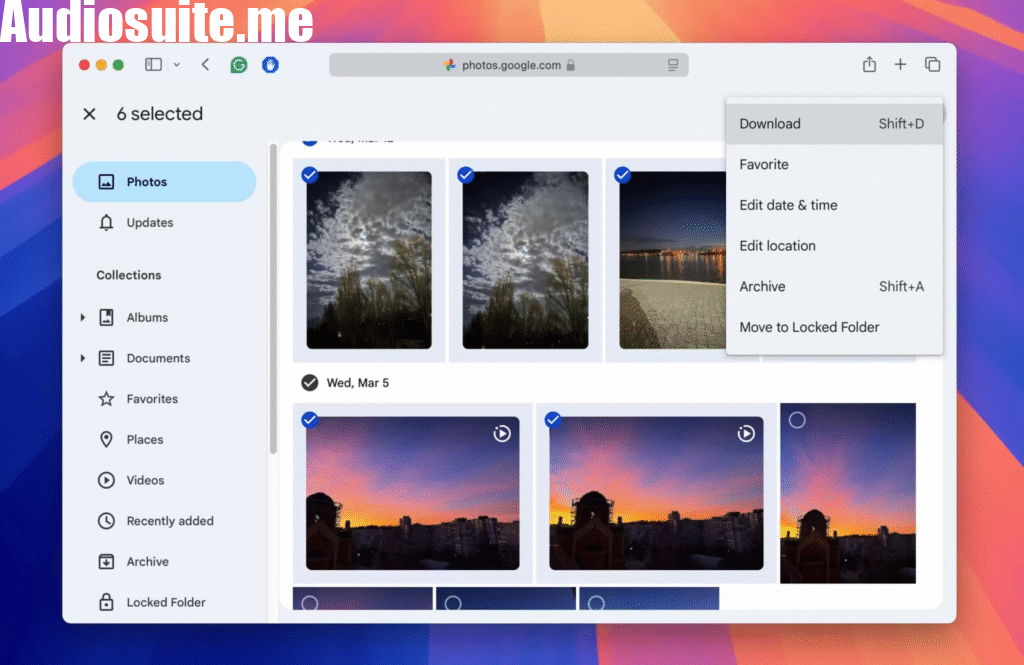
If you’re good at maintaining regular backups of files stored on your SD card, your deleted photos might be present there. You can check cloud backup services such as Google Photos, OneDrive, Dropbox, or iCloud Photos to back up and restore your photos. All you have to do is:
Firstly, log in to the cloud backup account linked to your device or SD card backups.
- Navigate to the “Photos,” “Gallery,” or “Backup” section and search for the deleted images.
- Now, go to the “Trash,” “Recently Deleted,” or “Recycle Bin” folder, as many cloud services temporarily store deleted photos for 30–60 days.
- Select the photos you want to recover and click the “Restore” or “Download” option.
Note: Save the recovered photos to your computer, phone, or another storage device instead of the same SD card.
Method 02: Recover Photos Using File History Backups
Another backup alternative that you can try to recover photos deleted from your SD card is via Windows’ built-in File History backup utility. If the SD card photos were previously backed up or copied to your Windows computer while File History was enabled, recovery would be easier. Follow the steps below to restore your deleted files using this backup utility:
- Connect your SD card and open the folder containing the backup of your SD card photos on your PC.
- Right-click inside the folder and select “Restore previous versions.”
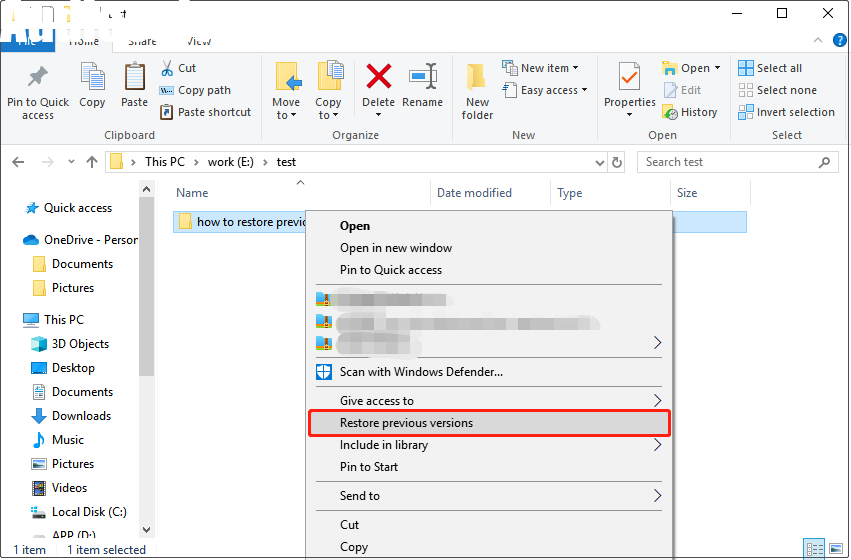
- Now, choose an available backup version containing the deleted photos.
- Click Restore to save selected photos to their original location.
Alternatively, you can copy the recovered files to another folder or external drive for safety.
Method 03: Try Third-Party Photo Recovery Software
If you don’t have the aforementioned backups of your photos lost from SD cards, try third-party photo recovery software. Tools like Stellar Photo Recovery perform a thorough scanning of your storage device to find recoverable files. Whether your photos were deleted accidentally, lost after formatting, or disappeared due to SD card corruption, this software can help restore them quickly and efficiently. Along with photos, you can use this software to restore deleted audio and video files from SD cards, memory cards, USB drives, hard drives, and other storage devices.
Steps to recover deleted photos from SD cards using photo recovery software:
Step 1: Download and install the Stellar Photo Recovery software from its official website on your PC.
Step 2: Launch the software and from the homepage, select Photos (as you need to restore deleted photos) and click Next.
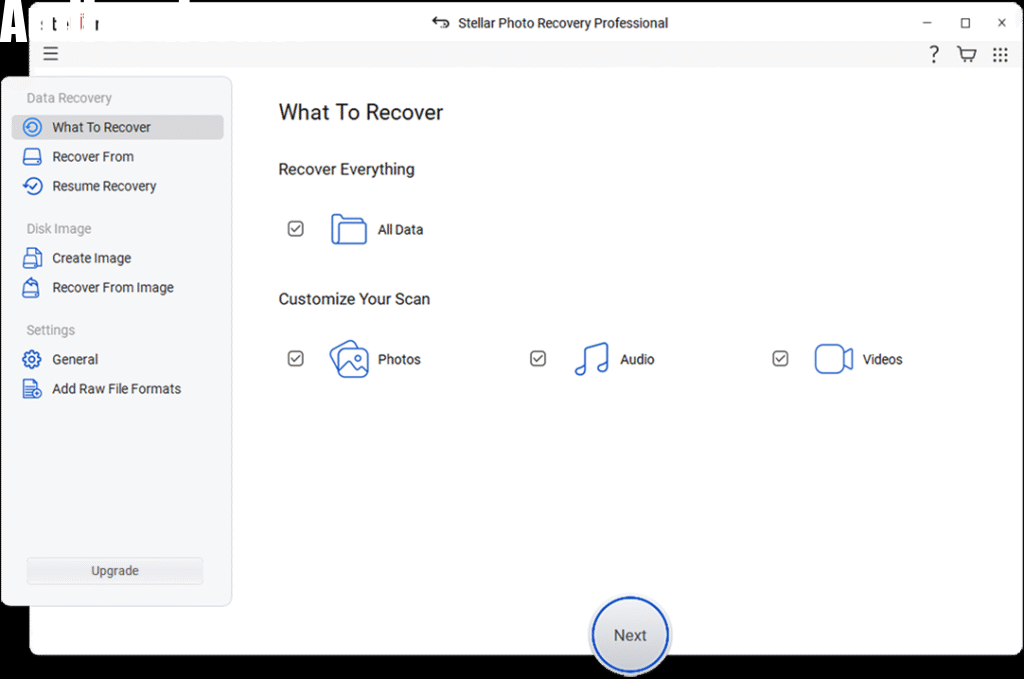
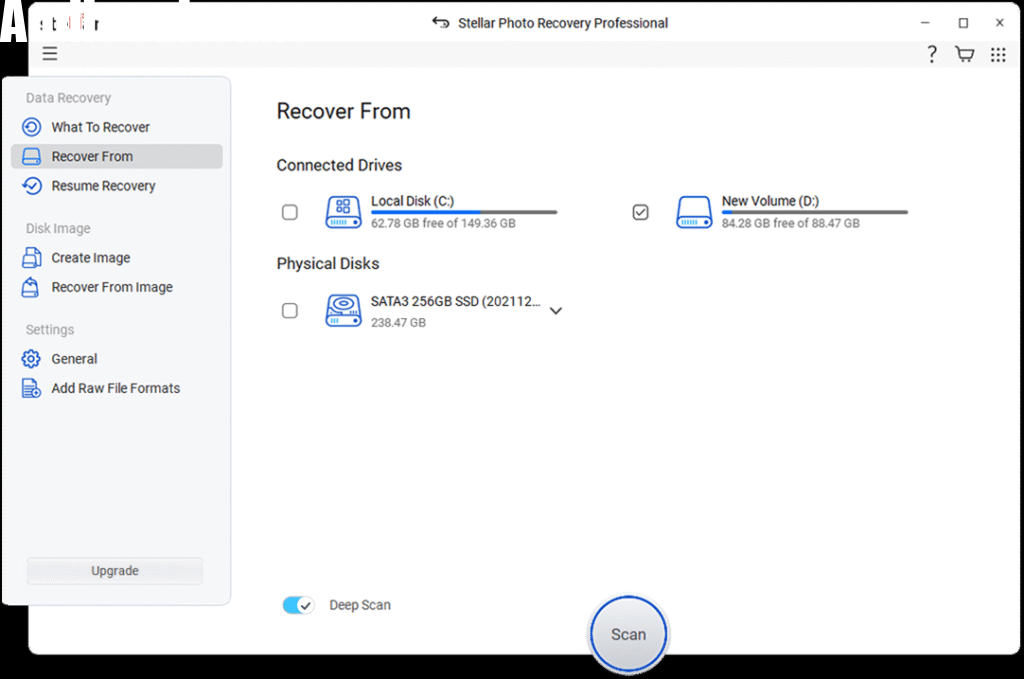
Step 3: Now, choose the storage drive where your deleted photos were earlier stored and click Scan to initiate the scanning process.
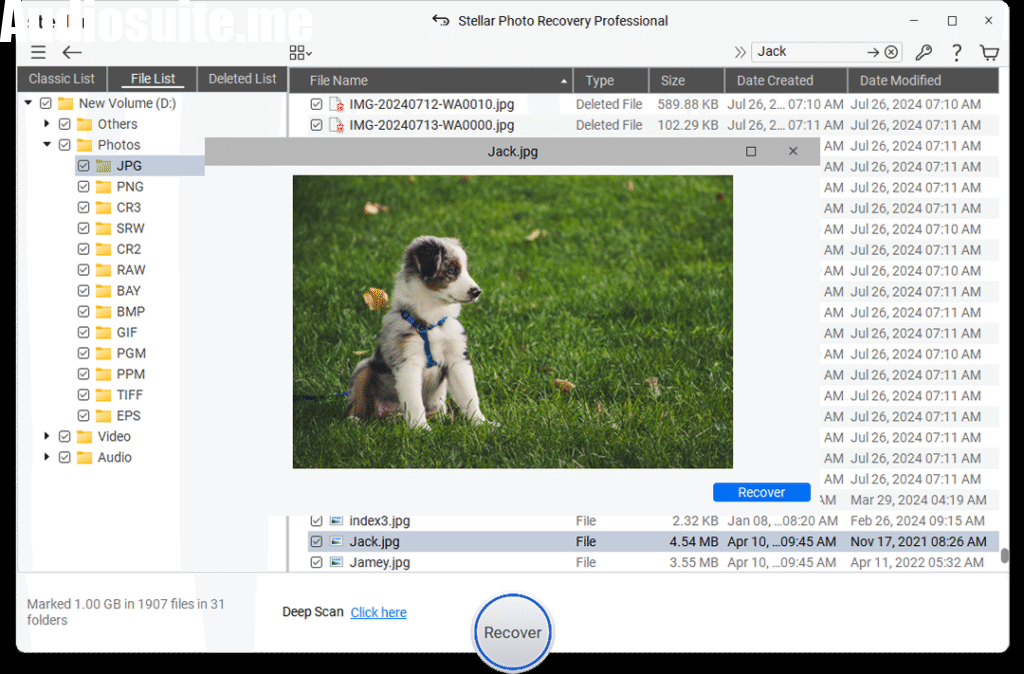
Step 4: Once scanning is complete, the software displays all recoverable photos. Preview them and select all that you want to restore. Click Recover to save selected photos back to your device.
How to Recover Photos from a Corrupted SD Card?
If your SD card is severely corrupted, it may become inaccessible or unreadable. In such situations, recovering data becomes challenging, and you may encounter the following issues on the card:
- “SD card needs formatting”
- “Card not detected”
- Missing folders
- Read/write errors
You can use Windows’ built-in CHKDSK utility to fix minor SD card corruption issues. All you have to do is:
- Connect your corrupted SD card to your computer using a card reader.
- Type CMD in the search box, right-click on Command Prompt and select Run as Administrator.
- In the Command Prompt window, type the following command: chkdsk X: /f (replace X with your SD card drive letter).
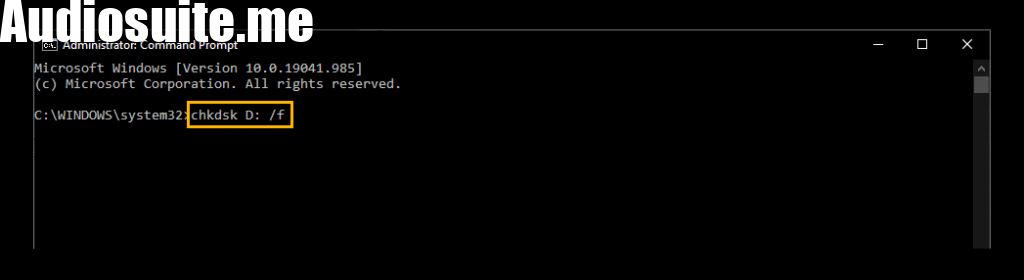
- Press Enter to start the scanning and repair process.
- Wait for the scan to complete. Windows will attempt to fix file system errors and bad sectors automatically.
- Once the process finishes, safely remove and reconnect the SD card to check if it is accessible.
How to Prevent Future Photo Loss from SD Cards?
Recovering deleted photos from the SD card is an easy process using the aforementioned photo recovery methods. Moreover, you can also consider below preventive tips to avoid photo loss issues in the future:
- Avoid improperly removing the SD card from your PC as this may damage the file system, causing corruption, inaccessible files, or complete data loss.
- Always choose trusted SD card brands that offer reliable storage performance, durability, better data protection, and reduced corruption risks over time.
- Maintain regular backups of your important photos on cloud storage, external drives, and computers to prevent permanent data loss.
- Regularly scan your SD cards for malicious programs like malware or viruses using a reliable antivirus software.
Wrapping Up
Recovering deleted photos from SD cards is often possible using the right recovery methods and third-party photo recovery software like Stellar Photo Recovery. Whether your photos are accidentally deleted, lost after formatting, or hidden due to corruption, you can easily restore your deleted photos from SD card using the aforementioned methods. The most important thing is to stop using the SD card immediately after data loss occurs. Then use reliable recovery software, backup services, or professional recovery assistance, depending on the condition of the card.